Introduction
You’ve heard of smart speakers. Now imagine adding a screen. A smart display combines a voice‑assisted speaker with a touchscreen, giving you a visual command center for your smart home. You can see your front door camera, control lights with a tap, watch a recipe video while cooking, or video call a family member – all from one device.
In 2026, smart displays have evolved far beyond simple Alexa or Google screens. They now integrate with Matter, support edge AI for privacy, and act as hubs for Thread and Zigbee networks. If you’re building a connected home, a smart display is no longer a luxury – it’s a central pillar.
This guide covers everything: what a smart display is, top models, how to choose one, setup tips, privacy considerations, and why it’s essential for modern smart homes.
What Is a Smart Display?
A smart display is a voice‑controlled touchscreen device that combines the functions of a smart speaker (like Amazon Echo or Google Nest) with a visual interface. It runs on a virtual assistant (Alexa, Google Assistant, or Siri) and can show you information, control smart home devices, play videos, make video calls, and more.
Key Features
Voice + touch control – Speak commands or tap the screen.
Smart home dashboard – See and control all connected devices.
Video calling – Built‑in camera for Zoom, Google Meet, or Alexa Calls.
Entertainment – Stream YouTube, Netflix, or music with lyrics.
Photo frame – Display family photos when idle.
Hub functionality – Some models include Zigbee, Thread, or Matter radios.
Why Add a Smart Display to Your Smart Home?
Visual feedback – See if doors are locked or lights are off.
Camera feeds – View your doorbell or security cameras instantly.
Recipes & cooking – Follow step‑by‑step instructions hands‑free.
Video calls – Stay connected with family, especially for elderly care.
Kids’ entertainment – Educational apps and parental controls.
Top Smart Displays in 2026
Here are the leading models, compared by features and ecosystem compatibility.
| Model | Assistant | Screen Size | Smart Home Hub | Camera | Best For |
|---|---|---|---|---|---|
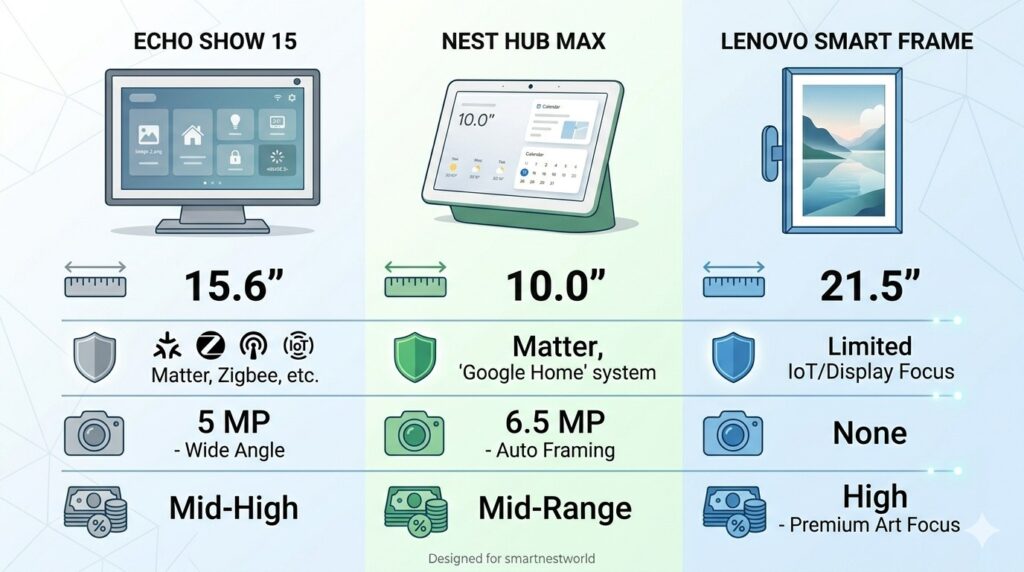
| Amazon Echo Show 15 | Alexa | 15.6″ | Zigbee, Thread, Matter (with hub) | 5 MP (sliding cover) | Wall‑mounted family dashboard |
| Google Nest Hub Max | Google Assistant | 10″ | Thread, Matter (built‑in) | 6.5 MP (with Nest Cam) | Google ecosystem users |
| Apple HomePod with Display (rumored/2026 model) | Siri | 7″ | Matter over Thread | 4K | Apple HomeKit homes |
| Amazon Echo Show 8 (3rd Gen) | Alexa | 8″ | Zigbee, Matter | 13 MP | Bedroom or kitchen counter |
| Lenovo Smart Frame | Google Assistant | 10.1″ | Matter (via cloud) | 5 MP | Digital art & photo frame |
Note: As of 2026, Apple has not officially released a smart display, but rumors persist. For Apple users, an iPad in Home Hub mode is a workaround.
How to Choose the Right Smart Display for Your Home
Consider these factors before buying:
1. Voice Assistant Ecosystem
Alexa (Amazon) – Largest number of skills, best for smart home variety.
Google Assistant – Best for search, YouTube, and Google Workspace.
Siri (Apple) – Best privacy, but limited device options.
2. Smart Home Hub Capabilities
Look for built‑in Zigbee, Thread, or Matter radios to control devices directly without extra hubs.
The Echo Show 15 and Nest Hub Max are excellent hub replacements.
3. Screen Size & Placement
Small (5‑8″) – Nightstand, desk, small kitchen.
Medium (10″) – Kitchen counter, living room.
**Large (15″+) – Wall‑mounted family command center.
4. Camera Privacy
Ensure the camera has a physical shutter or electronic kill switch.
All models above include a mic/camera off button.
5. Additional Features
Motion sensing (Nest Hub Max can detect sleep and gestures).
Temperature & humidity sensors (some Echo Shows).
Built‑in photo frame mode.
Step‑by‑Step: Setting Up Your Smart Display
Unbox and plug in – Place it within Wi‑Fi range and near a power outlet.
Download the companion app – Alexa app for Echo, Google Home for Nest.
Connect to Wi‑Fi – Follow on‑screen prompts.
Sign in to your account – Use the same account as your other smart home devices.
Enable smart home skills – Link your lights, locks, cameras, etc.
Customize the home screen – Choose widgets (calendar, weather, photo frame, camera feeds).
Set up voice recognition – Train the assistant to recognize different voices (especially useful for families).
Connect video calling – Add contacts for Zoom, Google Meet, or Alexa Calling.
Using a Smart Display as a Smart Home Controller
A smart display shines as a visual controller. Here’s what you can do:
View camera feeds – “Show me the front door camera.”
Control groups – Tap a “Living Room” tile to dim lights, lower blinds, and set thermostat.
Create routines – “Good morning” triggers lights, weather report, and news.
See energy usage – Some displays integrate with smart plugs to show real‑time consumption.
Manage security – Arm/disarm your security system, lock doors, check window sensors.
Example: Echo Show 15 as a Family Dashboard
Wall‑mount it in your kitchen. The screen shows:
Calendar appointments for each family member.
Grocery list (add items by voice).
Live feed of baby monitor.
Reminders for medication or trash day.
Doorbell camera picture‑in‑picture when someone rings.
Privacy & Security Best Practices for Smart Displays
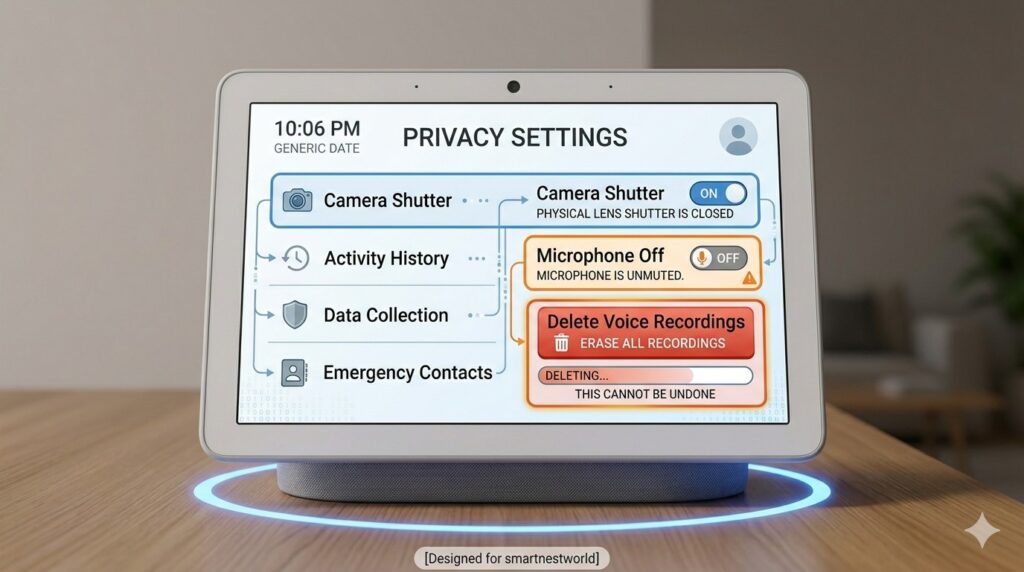
Smart displays have cameras and microphones – potential privacy risks. Follow these rules:
Use the physical camera shutter or cover it with a sliding cap (Echo Show 15 has one; for others, buy a $5 webcam cover).
Mute the microphone when not actively using voice commands.
Review voice recordings – In Alexa or Google app, delete history regularly.
Disable “Drop In” (Amazon) or “Broadcast” features if you don’t need them.
Place smart displays away from bedrooms and bathrooms – cameras should not face private areas.
Turn off “Photo upload” unless you want cloud storage of your images.
For maximum privacy, consider a local‑only smart display – but these are rare. The closest is using a Raspberry Pi with Home Assistant’s Companion app on a tablet.
Smart Display vs. Smart Speaker vs. Tablet
| Device | Voice Control | Touchscreen | Smart Home Hub | Portable | Best Use |
|---|---|---|---|---|---|
| Smart Display | ✅ | ✅ | ✅ (some models) | ❌ | Visual control, video calls, kitchen |
| Smart Speaker | ✅ | ❌ | ✅ (some) | ✅ | Music, voice‑only commands |
| Tablet (iPad/Android) | ⚠️ (via app) | ✅ | ❌ (requires separate hub) | ✅ | Full apps, mobility, but no always‑on voice |
Verdict: A smart display replaces a smart speaker in most cases and is more convenient than a tablet for quick smart home control.
The Future of Smart Displays (2026 and Beyond)
Generative AI integration – Displays will proactively suggest routines (“I notice you turn on the coffee maker at 7 AM – want me to automate that?”).
Edge AI processing – More models will handle voice and vision locally, reducing cloud dependence.
Ambient computing – Displays will become invisible, blending into walls or mirrors, only appearing when you approach.
Matter 1.5 – Full support for all device types, including appliances and EV chargers.
Health sensors – Future displays may monitor heart rate or sleep quality via radar.
Visit Previous Article:- Edge AI Smart Home
Visit Good Products:- Google Home
Conclusion
A smart display transforms your smart home from voice‑only to visual, intuitive, and family‑friendly. Whether you choose the wall‑mounted Echo Show 15 for a family dashboard, the Nest Hub Max for Google users, or wait for Apple’s rumored entry, you’re adding a powerful command center that simplifies daily life.
In 2026, with Matter and Thread becoming standard, smart displays are more capable than ever. They are no longer just gadgets – they are the visual heart of the connected home.
Frequently Asked Questions (FAQ)
Can a smart display work without a smart home hub?
Yes. Many smart displays (Echo Show, Nest Hub) have built‑in Zigbee or Thread radios, so they can directly control compatible devices without a separate hub. For Wi‑Fi devices, no hub is needed at all.
Do all smart displays support video calling?
Most do, but check camera resolution and supported apps. Amazon Echo Shows support Alexa Calling and Zoom; Google Nest Hub supports Google Meet.
Are smart displays secure for kids?
Yes, with parental controls. You can set screen time limits, block certain skills, and disable camera/mic for specific hours.
Can I use a smart display as a photo frame?
Absolutely. Most have a “Photo Frame” mode that cycles through images from Google Photos, Amazon Photos, or your local network.
Which smart display is best for an Apple HomeKit home?
Apple does not yet make a smart display. The best alternative is an iPad running the Home app in “Home Hub” mode, or a third‑party display with Matter support (but Siri integration is limited).